---
title: FlashRev New Weekly Update [29th December 2025 - 31st December 2025]
description: "FlashRev Update: Sora 2 video model is live! Plus, SlideAgent adds Manual Edit mode and smart image uploads for branding & data extraction."
---
[Skip to content](https://knowledge.flashintel.ai/en/knowledge/flashrev-new-weekly-update-29th-december-2025-31st-december-2025#main-content)
English
Show submenu for translations
[](https://www.flashlabs.ai/)
Open main navigation
Close main navigation
- English
Show submenu for translations
How can we help you?
- There are no suggestions because the search field is empty.
1. [Knowledge Base](https://knowledge.flashintel.ai/en/knowledge?hsLang=en)
2. [Release Notes](https://knowledge.flashintel.ai/en/knowledge/release-notes?hsLang=en)
3. [December 2025](https://knowledge.flashintel.ai/en/knowledge/release-notes?hsLang=en#december-2025)
# FlashRev New Weekly Update \[29th December 2025 - 31st December 2025\]
> **SuperAgent**
**1. SuperAgent Video Studio Update: Sora 2 Video Model Now Available**
With this release, Video Studio now supports the following configurations when using Sora 2:
Aspect Ratios
- **16:9** — Horizontal (ideal for YouTube, websites, presentations)
- **9:16** — Vertical (ideal for TikTok, Reels, Shorts)
Video Duration
- **10 seconds**
- **15 seconds**

Quick Creator Workflow
When creating a video with Sora 2, you can now explicitly select:
- Aspect Ratio
- Duration (10s or 15s)
- Number of videos to generate
- Resolution
This gives you predictable outputs that align with your distribution channel from the very beginning.
**2. SlideAgent Update: Manual Edit Mode for Precise, Hands-On Slide Editing**
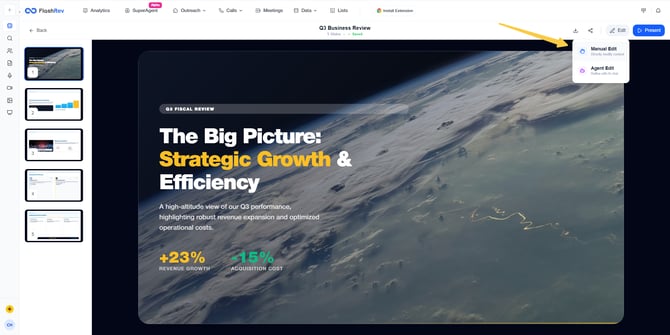
We’ve introduced **Manual Edit mode** in SlideAgent, giving you direct, canvas-level control over your slides after they’ve been generated by AI. This update is designed for moments when you want absolute precision—fine-tuning wording, adjusting emphasis, or making last-mile edits before sharing or presenting.
How it works
- Enter Manual Edit mode
- Open an existing slide deck from the My Decks panel.
- Click **Edit** in the top toolbar and select **Manual Edit** from the dropdown menu.
- Edit directly on the canvas
- Click any editable element (text blocks, titles, or content areas) to highlight and activate it.
- Make changes instantly - text updates are applied directly where you see them, without additional dialogs or prompts.
- Real-time preview
- All changes are reflected immediately on the canvas, so you can evaluate layout, spacing, and visual balance as you edit.
- Undo / Redo with confidence
- The bottom toolbar records every action in your current editing session.
- You can undo or redo steps freely, allowing you to experiment without risk.
- Save and version your changes
- Click Save in the top-right toolbar to commit your edits.
- Each save creates a new version, ensuring your original AI-generated deck remains intact.
Why this matters
- Greater control, zero friction: Make precise edits without regenerating slides or re-running prompts.
- Perfect for final polish: Ideal for last-minute revisions before a client meeting, executive review, or presentation.
- AI + human workflow: Start fast with AI, finish strong with manual refinement - on your terms.
With Manual Edit mode, SlideAgent now supports both AI-driven creation and hands-on professional editing, giving you the flexibility to move seamlessly between automation and control.
**3. SlideAgent Update: Upload Images to Guide, Brand, and Supercharge Your Slides**
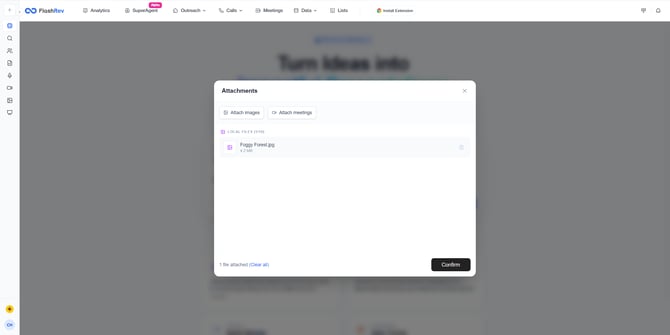
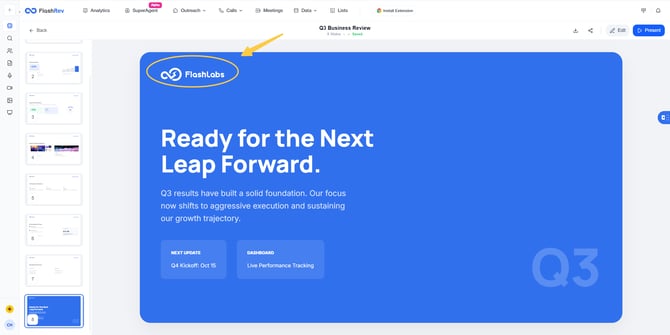
You can now upload images directly when creating or refining a deck, enabling SlideAgent to see what you see, understand your intent more precisely, and generate slides that align with your real-world context.
Supported Image Upload Specifications
- **Supported formats**: `jpg`, `jpeg`, `png`, `webp`
- **Max size per image**: 5MB
- **Max number of images**: 10
- **Total upload size limit**: 10MB
How SlideAgent Understands Your Images
Once images are uploaded, SlideAgent’s LLM analyzes both your prompt and the visual content together.
Based on semantic alignment, SlideAgent automatically assigns one or more functional roles to each image.
This is not manual tagging — it’s intent-aware, context-driven reasoning.
Image Role Intelligence (Automatic Role Assignment)
Each uploaded image can serve one or multiple roles in the presentation pipeline:
1. THEME\_STYLE\_REF
Used as a **visual reference**.
- Extracts dominant colors
- Applies them as the **global slide theme**
- Ensures visual consistency across the entire deck
**Typical use**: brand mood boards, inspiration screenshots, design references.
2. LOGO\_BRANDING
Used as a **brand identifier**.
- Automatically placed in master slides
- Appears in headers, footers, or cover positions
- Maintains consistent brand presence on every slide
**Typical use**: company logos, product marks.
3. CONTENT\_ILLUSTRATION
Used as **slide-level illustrations**.
- Matched to the most relevant slide by semantic meaning
- Layout adapts dynamically based on aspect ratio
- Left image / right text
- Top image / bottom text
- Full-bleed visual blocks
**Typical use**: product screenshots, diagrams, conceptual visuals.
4. BACKGROUND\_OVERLAY
Used as **full-screen background imagery**.
- Automatically fills the slide background
- Applies smart overlays to preserve text readability
- Adjusts contrast, brightness, and mask intensity
**Typical use**: hero visuals, emotional or atmospheric imagery.
5. DATA\_CONTENT\_EXTRACT
Used as a **knowledge source**.
- Extracts text, numbers, or chart insights from images
- Integrates extracted data into slide content or outlines
- Does *not* visually place the image unless relevant
**Typical use**: screenshots of reports, charts, dashboards, tables.
6. IGNORE
Used when an image is **semantically irrelevant**.
- Image is excluded from layout and content
- SlideAgent proceeds normally
- User is informed that the asset was not used
**Typical use**: accidental uploads or unrelated visuals.
Typical User Scenarios
| **User Prompt** | **Uploaded Image** | **Assigned Role** | **Final Result** |
| --- | --- | --- | --- |
| “Create a tech company intro deck” | FlashLabs blue logo | `THEME_STYLE_REF`, `LOGO_BRANDING` | Blue-and-white color scheme, with the logo placed in the top-right corner of each slide. |
| “Analyze H2 sales performance” | Screenshot of sales line chart | `DATA_CONTENT_EXTRACT`, `CONTENT_ILLUSTRATION` | Generate a sales analysis slide, with copy that incorporates the data shown in the image, and include the original image on the slide. |
| “Write a romantic travel guide” | Sunset beach photo | `BACKGROUND_OVERLAY` | Use the image as a full-screen background on the cover slide, with white text. |
| “Help me polish this slide” | Unrelated landscape photo | `IGNORE` | Optimize the text as usual, do not insert the image, and inform the user that the attachment was not used. |
> **Others**
**4. SlideAgent Update: Unified Billing & Transparent Token Accounting**
As SlideAgent evolves into a more powerful, multi-model AI system, clear and predictable billing becomes critical.
This ensures that every step of slide generation is accurately metered, traceable, and consistent with the rest of the FlashRev AI platform.
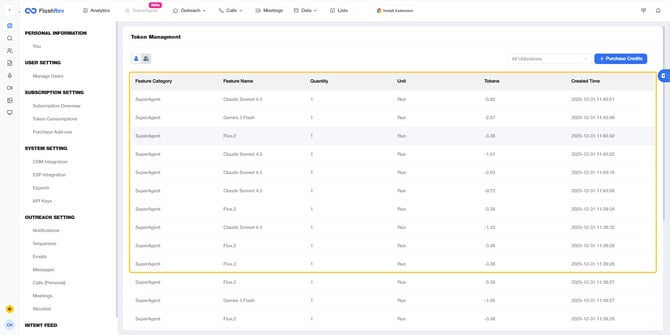
What You’ll See in Token Management
With this update, SlideAgent usage now appears clearly in Token Management:
- Each model run is logged as a separate entry
- Feature category
- Model name
- Token consumption per execution
- Exact execution timestamp
- [Get Started](https://knowledge.flashintel.ai/en/knowledge/get-started?hsLang=en#main-content)
- [GTM - Go-to-Market Basics](https://knowledge.flashintel.ai/en/knowledge/get-started?hsLang=en#gtm-go-to-market-basics)
- [Discover Tab](https://knowledge.flashintel.ai/en/knowledge/discover-tab?hsLang=en#main-content)
- [People Search](https://knowledge.flashintel.ai/en/knowledge/discover-tab?hsLang=en#people-search)
- [Company Search](https://knowledge.flashintel.ai/en/knowledge/discover-tab?hsLang=en#company-search)
- [In-Market-Timing Engine](https://knowledge.flashintel.ai/en/knowledge/discover-tab?hsLang=en#in-market-timing-engine)
- [Data Governance](https://knowledge.flashintel.ai/en/knowledge/discover-tab?hsLang=en#data-governance)
- [Engage Tab](https://knowledge.flashintel.ai/en/knowledge/engage-tab?hsLang=en#main-content)
- [Deliverability Strategies](https://knowledge.flashintel.ai/en/knowledge/engage-tab?hsLang=en#deliverability-strategies)
- [Parallel-Dialer](https://knowledge.flashintel.ai/en/knowledge/engage-tab?hsLang=en#parallel-dialer)
- [Sequences](https://knowledge.flashintel.ai/en/knowledge/engage-tab?hsLang=en#sequences)
- [Connection Guide](https://knowledge.flashintel.ai/en/knowledge/engage-tab?hsLang=en#connection-guide)
- [Meetings](https://knowledge.flashintel.ai/en/knowledge/engage-tab?hsLang=en#meetings)
- [LinkedIn Automation](https://knowledge.flashintel.ai/en/knowledge/engage-tab?hsLang=en#linkedin-automation)
- [List Tab](https://knowledge.flashintel.ai/en/knowledge/list-tab?hsLang=en#main-content)
- [List Management](https://knowledge.flashintel.ai/en/knowledge/list-tab?hsLang=en#list-management)
- [CSV Enrichment](https://knowledge.flashintel.ai/en/knowledge/list-tab?hsLang=en#csv-enrichment)
- [CRM List](https://knowledge.flashintel.ai/en/knowledge/list-tab?hsLang=en#crm-list)
- [Integrations](https://knowledge.flashintel.ai/en/knowledge/integrations?hsLang=en#main-content)
- [Zapier](https://knowledge.flashintel.ai/en/knowledge/integrations?hsLang=en#zapier)
- [HubSpot](https://knowledge.flashintel.ai/en/knowledge/integrations?hsLang=en#hubspot)
- [App and Extension](https://knowledge.flashintel.ai/en/knowledge/app-and-extension?hsLang=en#main-content)
- [Chrome Extension](https://knowledge.flashintel.ai/en/knowledge/app-and-extension?hsLang=en#chrome-extension)
- [Strategies](https://knowledge.flashintel.ai/en/knowledge/strategies?hsLang=en#main-content)
- [Account-based Marketing](https://knowledge.flashintel.ai/en/knowledge/strategies?hsLang=en#account-based-marketing)
- [Tutorial & Walkthrough Videos](https://knowledge.flashintel.ai/en/knowledge/tutorial-walkthrough-videos?hsLang=en#main-content)
- [Onboarding](https://knowledge.flashintel.ai/en/knowledge/tutorial-walkthrough-videos?hsLang=en#onboarding)
- [Release Notes](https://knowledge.flashintel.ai/en/knowledge/release-notes?hsLang=en#main-content)
- [August 2023](https://knowledge.flashintel.ai/en/knowledge/release-notes?hsLang=en#august-2023)
- [September 2023](https://knowledge.flashintel.ai/en/knowledge/release-notes?hsLang=en#september-2023)
- [October 2023](https://knowledge.flashintel.ai/en/knowledge/release-notes?hsLang=en#october-2023)
- [November 2023](https://knowledge.flashintel.ai/en/knowledge/release-notes?hsLang=en#november-2023)
- [December 2023](https://knowledge.flashintel.ai/en/knowledge/release-notes?hsLang=en#december-2023)
- [January 2024](https://knowledge.flashintel.ai/en/knowledge/release-notes?hsLang=en#january-2024)
- [February 2024](https://knowledge.flashintel.ai/en/knowledge/release-notes?hsLang=en#february-2024)
- [March 2024](https://knowledge.flashintel.ai/en/knowledge/release-notes?hsLang=en#march-2024)
- [April 2024](https://knowledge.flashintel.ai/en/knowledge/release-notes?hsLang=en#april-2024)
- [May 2024](https://knowledge.flashintel.ai/en/knowledge/release-notes?hsLang=en#may-2024)
- [June 2024](https://knowledge.flashintel.ai/en/knowledge/release-notes?hsLang=en#june-2024)
- [July 2024](https://knowledge.flashintel.ai/en/knowledge/release-notes?hsLang=en#july-2024)
- [August 2024](https://knowledge.flashintel.ai/en/knowledge/release-notes?hsLang=en#august-2024)
- [September 2024](https://knowledge.flashintel.ai/en/knowledge/release-notes?hsLang=en#september-2024)
- [October 2024](https://knowledge.flashintel.ai/en/knowledge/release-notes?hsLang=en#october-2024)
- [November 2024](https://knowledge.flashintel.ai/en/knowledge/release-notes?hsLang=en#november-2024)
- [December 2024](https://knowledge.flashintel.ai/en/knowledge/release-notes?hsLang=en#december-2024)
- [January 2025](https://knowledge.flashintel.ai/en/knowledge/release-notes?hsLang=en#january-2025)
- [February 2025](https://knowledge.flashintel.ai/en/knowledge/release-notes?hsLang=en#february-2025)
- [March 2025](https://knowledge.flashintel.ai/en/knowledge/release-notes?hsLang=en#march-2025)
- [April 2025](https://knowledge.flashintel.ai/en/knowledge/release-notes?hsLang=en#april-2025)
- [May 2025](https://knowledge.flashintel.ai/en/knowledge/release-notes?hsLang=en#may-2025)
- [June 2025](https://knowledge.flashintel.ai/en/knowledge/release-notes?hsLang=en#june-2025)
- [July 2025](https://knowledge.flashintel.ai/en/knowledge/release-notes?hsLang=en#july-2025)
- [August 2025](https://knowledge.flashintel.ai/en/knowledge/release-notes?hsLang=en#august-2025)
- [September 2025](https://knowledge.flashintel.ai/en/knowledge/release-notes?hsLang=en#september-2025)
- [October 2025](https://knowledge.flashintel.ai/en/knowledge/release-notes?hsLang=en#october-2025)
- [November 2025](https://knowledge.flashintel.ai/en/knowledge/release-notes?hsLang=en#november-2025)
- [December 2025](https://knowledge.flashintel.ai/en/knowledge/release-notes?hsLang=en#december-2025)
- [January 2026](https://knowledge.flashintel.ai/en/knowledge/release-notes?hsLang=en#january-2026)
- [February 2026](https://knowledge.flashintel.ai/en/knowledge/release-notes?hsLang=en#february-2026)
- [March 2026](https://knowledge.flashintel.ai/en/knowledge/release-notes?hsLang=en#march-2026)
- [Contact us](https://knowledge.flashintel.ai/en/knowledge/contact-us?hsLang=en)
[](https://knowledge.flashintel.ai/?hsLang=en)
FlashLabs Knowledge Base
© 2026 FlashLabs AI
```json
{
"@context" : "https://schema.org",
"@type" : "VideoObject",
"contentUrl" : "https://22606445.fs1.hubspotusercontent-na1.net/hubfs/22606445/video_assets/204069920348/inherited/web_optimized.mp4",
"dateModified" : "2026-01-02T18:22:06.471Z",
"duration" : "PT37S",
"height" : 1080,
"name" : "w52_flashrev_03",
"thumbnailUrl" : "https://22606445.fs1.hubspotusercontent-na1.net/hubfs/22606445/w52_flashrev_03.mp4/medium.jpg?t=1767378126471",
"uploadDate" : "2026-01-02T18:21:40.142Z",
"width" : 1920
}
```